

People search for a product, see which shops nearby have it in stock today, and walk in. Google free local listings are what put your shelves in front of them, at no cost, and most independent shops have never set them up. You need a physical store in a supported country, a Merchant Center account linked to your Google Business Profile, and product, price and in-store stock data. If your website can't carry that data, Google can host a store page for you.
It's one of the few free visibility tools Google still offers a small shop, and it's underused. In a Reddit discussion among ad managers about organic Shopping listings, organic Shopping was called "the most underutilized aspect" of the whole channel. Below is what you need, the setup in order, and the problems owners run into most.
What Google free local listings show shoppers
When your products are set up, they can appear in Google's shopping results and on your Business Profile with a note that they're available in store nearby, and shoppers can browse what you carry from your profile. That's the "see what's in store" feature owners ask about.
Google's Merchant Center help page on free local listings sets out the requirements. The main ones:
- A brick-and-mortar store that customers can visit, in a country where the program runs. Free local listings are available in around 50 countries. Local inventory ads, the paid version, run in more than 80.
- A store data source, which comes from linking your Business Profile to Merchant Center.
- Product data with prices for the items you want to show.
- In-store inventory data saying which of those products are available at your store.
- A place for shoppers to land. Either product pages on your own website, or a Google-hosted store page if your site can't carry that information.
That last point matters for small shops. You don't need an online store to take part. If you don't have product pages, the Google-hosted page covers you.
Before you start: what a small shop needs to have ready
- A verified Business Profile with the right address, hours and category. Merchant Center uses it as your store location.
- A list of the products you want to show, with a clear title, price, a photo and a barcode (GTIN) where the product has one.
- A way to keep stock numbers current. Your point-of-sale system is the best source. A spreadsheet works if you'll actually update it.
- Someone responsible for it. Stale inventory is worse than none. Showing an item as in stock that sold last week sends an annoyed customer to your door.
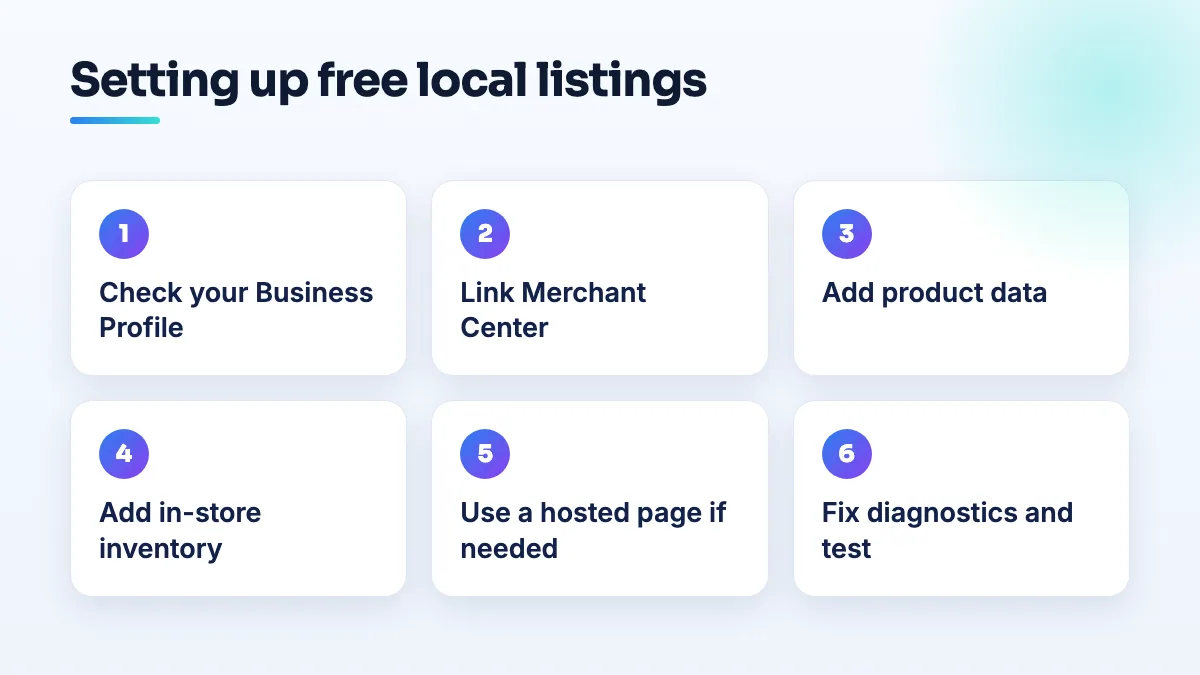
How to set up Google free local listings
- Check your Business Profile first. The name, address and hours must be correct and the profile verified. Fix anything wrong now, because Merchant Center reads the store from here.
- Create a Merchant Center account and link your Business Profile. Use the same Google account that manages your profile, or one that has access to it. Merchant Center and your Business Profile are separate systems. If Merchant Center can't see your store, read about the Merchant Center Add Store 0 stores error before you go further.
- Choose how your product data gets in. If your shop runs on an ecommerce platform or a point-of-sale system with a Google connection, use it. If not, upload a product spreadsheet. Start with your best sellers and the items people ask for by name, not your whole catalog.
- Add in-store inventory. For each product, give the quantity or availability and the price at your store. Update it at least daily if stock moves fast.
- Pick where shoppers land. If you have product pages, link them. If you don't, turn on the Google-hosted store page option so shoppers still see your products and details.
- Turn on free local listings and wait for review. Merchant Center checks your data. Open the diagnostics section and fix every issue it lists, starting with the ones that block products from showing.
- Test it the way a shopper would. On your phone, search for a product you stock plus "near me", and check your Business Profile for your products. Give it time; data can take days to show.
Business Profile products or Merchant Center?
You can also add products directly to your Business Profile by hand. It's simpler for a handful of items, but it doesn't carry live stock. The two can clash. On a Local Search Forum thread comparing Merchant Center and Business Profile products, practitioners note that once a shop links Merchant Center, it becomes the main source for products, and that larger chains have to use a full local inventory feed. I explain which route suits which shop in the answer on Google Business Profile products vs Merchant Center.
Two odd problems come up often enough to know about:
- Products stuck in "Pending". Agencies have reported every product on a profile stuck pending, even on profiles with no Merchant Center account connected.
- Products tied to a Shopify feed you don't use. Some owners found their profile products suddenly attached to a "Shopify local feed" they'd never set up, and then disappearing. The fix reported to work was creating a Merchant Center account and switching off the option to show products in ads.
If "see what's in store" doesn't show up
Sometimes everything is set up and the feature still doesn't appear. In a Local Search Forum thread troubleshooting the see what's in store feature, a practitioner's Google rep called it a glitch rather than a setup mistake. Before you assume that, check:
- Merchant Center diagnostics show no errors on your inventory data.
- The store in Merchant Center matches your Business Profile exactly.
- Your inventory has been updated recently and shows items in stock.
- Free local listings are switched on for your products.
If all four are true and it still isn't showing after a couple of weeks, post in the Merchant Center Help Community with screenshots of your setup.
For boutiques and clothing stores
Clothing shops get more out of this than almost anyone, and have a little more setup to do.
- Sizes and colors matter. Each size and color is its own product in your data, grouped together. Merchant Center flags missing clothing details in diagnostics, so fix those first.
- Stock is thin and changes weekly. A boutique might have two of something. Keep quantities honest and update whenever a delivery arrives.
- Your photos should be your own. Pictures of the piece on your rail or on a model in your shop are what make a local shopper come in.
This is often a better answer than a web shop. Boutique owners describe both sides of the problem: a Reddit thread about a Shopify boutique with traffic and no sales, and a Reddit post from a new main street boutique in a walkable tourist town that couldn't turn footfall into customers. Showing what's on the rail today, to people nearby, connects the two. It's a big part of what I set up in boutique SEO work, and for general shops in retail store SEO.
Free listings first, ads later
Local inventory ads are the paid version of the same data. I'd get free local listings working first, because the setup is the same and it shows you whether your data is good. Once it is, you can decide on ads. I cover that decision in the answer on whether local inventory ads are worth it for a single store.
What not to do
- Don't upload stock and forget it. Out-of-date inventory sends customers for things you no longer have.
- Don't list products you don't keep in store. Free local listings are for what's on your shelves, not what you can order in.
- Don't start with the whole catalog. Get twenty products right, then expand.
- Don't fight Business Profile products and Merchant Center at once. Pick one route and stick with it.
Where to start
This week, check your Business Profile is correct, open a Merchant Center account and link it. Then list twenty of the products people ask for most. If you'd like it set up and connected properly, that's part of our ecommerce SEO work for shops with a physical store.
Written by Saifur Rifat, Founder & SEO Lead at SERP Squad.