

Your shop has a verified Google Business Profile, you open Merchant Center to set up free local listings, and the Merchant Center Add Store screen shows 0 stores. The store isn't missing. The two systems simply aren't connected yet, and Google won't connect them for you: you have to link them with a Google account that has access to both.
This hits independent shops and boutiques more than chains, because the person who set up the profile years ago is rarely the person now setting up Merchant Center. Below is why it happens, the order I fix it in, and what to check when the link works but the "See what's in store" feature still never shows up.
Why Merchant Center Add Store shows 0 stores when your profile exists
In a Help Community thread from a shop owner whose Add Store screen found nothing, a Product Expert explained that Merchant Center and Business Profile are separate systems that pull from different databases, and that Google will not sync them automatically. That one sentence explains most of these cases. Merchant Center doesn't search Google Maps for your shop. It only lists the profiles it can see through the account you're signed in with.
When I look at one of these, the cause is nearly always one of these:
- The wrong Google account. Merchant Center is signed in with a work email, and the profile belongs to a personal Gmail, a former employee or the web designer who built it.
- Access through a business group only. The profile sits inside a business group or organization account, and the Merchant Center user has access to one but not the other.
- The profile isn't a storefront. Google's requirements for free local listings start with a brick-and-mortar store in a supported country. A profile set up as a service-area business with the address hidden doesn't describe a store shoppers can walk into.
- The profile isn't in good standing. Unverified, suspended or stuck in review. I'd sort that first, because nothing downstream works until it's fixed.
- The country isn't covered. Free local listings run in roughly 50 countries, according to the same help page, so check yours is one of them before you troubleshoot anything else.
How to link your Business Profile to Merchant Center, step by step
Do these in order. Skipping ahead is how people end up with a second Merchant Center account or, worse, a second profile for the same shop.
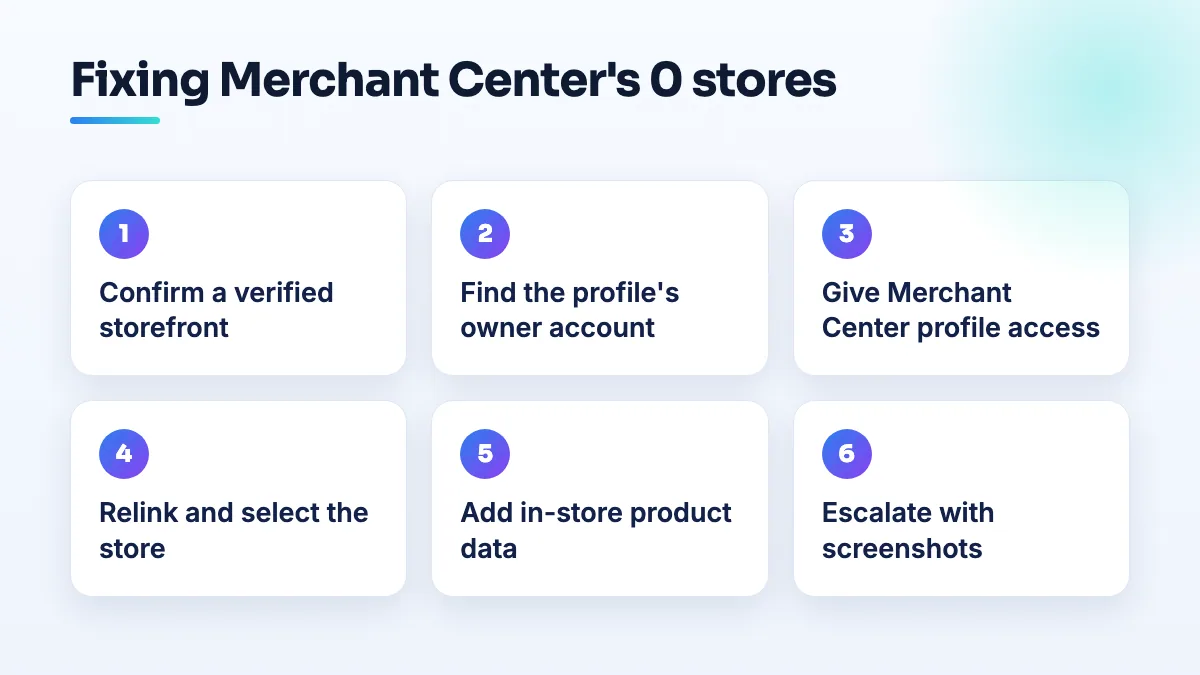
- Confirm the profile is a verified storefront. Search your shop's name on Google Maps while signed in and check the profile shows your street address, your hours and no warning about verification. If the address is hidden, show it: you're a shop customers visit, so it should be visible anyway.
- Find out which Google account owns the profile. Open the profile's list of people with access. Note the primary owner and any owners or managers. If you don't recognize the owner account, get access transferred to you before going further.
- Make the Merchant Center account an owner or manager of the profile. Either sign in to Merchant Center with the account that already owns the profile, or add the email you use for Merchant Center to the profile as an owner or manager and accept the invitation from that inbox. If the profile lives in a business group, give that email access to the group as well.
- Link again from Merchant Center. Sign out of every other Google account in that browser, sign back in to Merchant Center with the account from step 3, and start the Business Profile link again. Your shop should now appear to select. If you have more than one shop, select each one.
- Check the store details match. The name, address and phone Merchant Center shows for the store should be the same as the profile. If they're different, you've linked the wrong profile, or there's a duplicate profile out there that needs cleaning up.
- Set up the in-store product side. A linked store is only half of it. Free local listings also need your product and price data plus in-store availability. If your website can't carry that, Google's help page says it offers a Google-hosted store page instead, so you don't need a new site.
- Give it two days, then escalate with evidence. If Add Store still shows 0 stores after 48 hours with the right account, take screenshots of the profile's access list and the empty Add Store screen and post them in the Merchant Center Help Community or send them to Merchant Center support. Ask them to confirm which account the profile belongs to. That's the question that unblocks it.
When "See what's in store" is set up and still not showing
Sometimes the link works, the store is approved and products are uploaded, and the "See what's in store" feature still doesn't appear on the profile. In a Local Search Forum discussion about the invisible in-store feature, the business had everything configured, and their Google rep called it a glitch rather than a setup error.
So it isn't always you. Before you accept that, though, I'd check these, because each of them is fixable:
- Products are approved, not just uploaded. Look at product status in Merchant Center. Disapproved or pending items won't show in store, however many you upload.
- In-store availability is actually coming through. A price feed without availability means Google knows what you sell but not what's on the shelf today.
- Prices match. The price in your data, on your website or store page and at the till should be the same. A mismatch is the kind of thing that gets items pulled.
- The free local listings program is switched on for the linked store, not just for online products.
- You're looking on the surfaces where it shows. Check on a phone, logged out, searching the shop name and a product you stock. The owner's own view of the profile isn't always what shoppers see.
If every one of those is green and it still doesn't show after a couple of weeks, document it with dated screenshots and escalate. The forum case shows Google's own staff will sometimes admit the problem is on their side, but only once you've proven the setup is right.
What's different for boutiques and clothing stores
A boutique's catalog is harder to keep accurate than a hardware shop's. Every size and color is its own item, stock turns over by season, and a single dress might be the last one on the rail. If your in-store availability is wrong, a shopper drives over for a size you sold on Saturday.
My advice for clothing stores: only list what you can keep current, start with core lines that stay in stock rather than one-off pieces, and connect the point-of-sale system rather than updating stock by hand. General retail shops with stable stock can list far more of the catalog from day one.
What not to do while Merchant Center shows 0 stores
- Don't create a new Business Profile so Merchant Center can "find" one. You'll end up with a duplicate that competes with your real listing, and cleaning that up takes far longer than fixing access.
- Don't open a second Merchant Center account to start fresh. The problem is the account's access to the profile, and a new account has the same problem.
- Don't switch your shop to a service-area profile or change its address to match something in Merchant Center. Change the Merchant Center side instead.
- Don't keep clicking Add Store every hour. Once access is right, it can take a little while to appear. Fix, wait, then check.
Next step
If you're setting this up so shoppers can see what's on your shelves, read how Google free local listings work for a small shop before you upload a big catalog. If you're weighing up whether you even need Merchant Center, I cover that in Google Business Profile products vs Merchant Center.
This is the kind of plumbing we sort out in retail store SEO and boutique SEO projects: getting the profile, the product data and the website to agree. If the problem is the profile itself, that's Google Business Profile management, and if it's the product pages on your site, it's online store SEO.
Written by Saifur Rifat, Founder & SEO Lead at SERP Squad.